
Download Nero USBxCopy – Secure Multi‑Copy Tool for USB Drives
Nero USBxCopy is a purpose‑built backup utility from Nero AG that focuses on the most common task for many home‑office and power‑user environments – copying data to multiple USB flash drives or external USB hard drives in a single, coordinated operation. The software automatically detects every USB device you plug into a Windows PC, presents a clear overview of each drive’s capacity, file‑system format and health status, and then lets you launch a simultaneous copy of a selected source folder to as many devices as you need. In addition to multi‑copy, Nero USBxCopy includes a built‑in formatter (supporting FAT32, NTFS and exFAT), a checksum‑based verification step that flags corrupted files, and a colour‑coded progress monitor that makes it easy to spot failed transfers at a glance. While the feature set is intentionally streamlined – there are no advanced encryption options, cloud sync, or scheduling capabilities – the simplicity of the interface and the reliability of the copy engine make it a solid choice for users who need to create duplicate backups of critical documents, media libraries, or deployment images quickly and securely.
Key Features that Power Multi‑Copy Backups
- Automatic USB detection: As soon as a USB device is inserted, Nero USBxCopy lists it with size, file‑system type and free space.
- Multi‑copy engine: Choose a source folder once and copy it to any number of connected USB drives simultaneously, saving time compared with manual repeat copies.
- Integrated formatter: Format drives to FAT32, NTFS or exFAT directly from the application before copying, ensuring compatibility with the target platform.
- Checksum verification: After each copy, the program creates and compares MD5/SHA‑1 checksums to confirm data integrity.
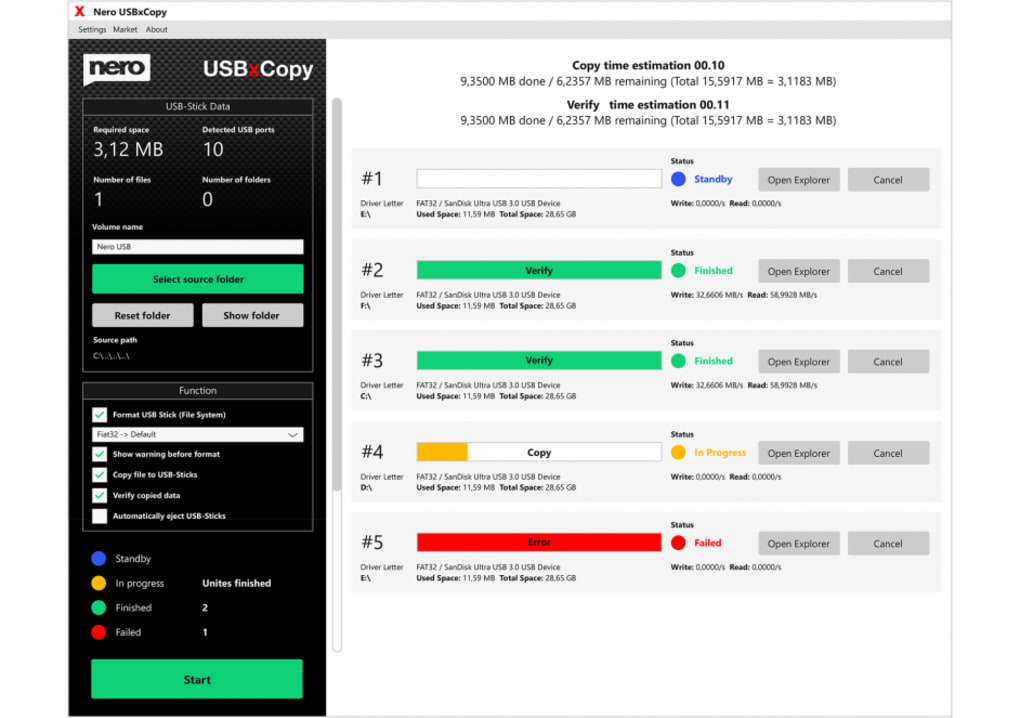
- Colour‑coded status bar: Green = finished, yellow = in progress, red = failed – instantly tells you which drives need attention.
- Simple drag‑and‑drop UI: No steep learning curve; users can start a copy operation with a few clicks.
- Standalone or suite inclusion: Available as a separate purchase or bundled with the Nero Platinum Suite for users who already own Nero’s multimedia tools.
- Secure copy handling: All data stays on the local machine; no cloud upload or external network traffic is involved.
Step‑by‑Step Installation and Everyday Usage
Getting started with Nero USBxCopy is straightforward, even for users who are not technically inclined. Follow these steps to install the program and begin creating multi‑copy backups:
- Download the installer: Visit the official Nero website, locate the Nero USBxCopy product page, and click the “Download Free Trial” button. The file is a small
.exe(approximately 25 MB) that works on all recent Windows versions. - Run the installer: Double‑click the downloaded file. The wizard will ask you to accept the End‑User License Agreement, choose an installation folder (the default C:\Program Files\Nero\USBxCopy works fine), and decide whether to create a desktop shortcut.
- Complete the setup: After the files copy, you’ll be prompted to restart your computer. A quick reboot ensures that the necessary driver hooks are registered so the software can detect USB devices instantly.
- Launch the application: Open Nero USBxCopy from the Start menu or the desktop shortcut. The main window displays a grid of detected USB drives, each with its own status icon.
- Select source data: Drag a folder from Windows Explorer onto the “Source Folder” pane, or click the browse button and navigate to the directory you wish to copy.
- Choose target drives: Tick the checkboxes next to each USB drive you want to receive the data. If a drive needs formatting, click the “Format” button and pick the desired file system.
- Start the copy: Press the “Copy” button. Nero USBxCopy will begin writing the source folder to all selected devices at once. The progress bar and colour‑coded indicators update in real time.
- Verify results: Once the copy finishes, the software automatically generates checksums for each file on each drive and compares them to the source. Any mismatches are highlighted in red, and you can re‑run the copy for the affected drive.
- Save a session (optional): If you frequently copy the same data set to the same group of drives, you can save the configuration as a session file. This allows you to reload the settings with a single click in the future.
Every step is designed to keep the user in control while minimizing the risk of accidental data loss. The UI is uncluttered, and all advanced options (such as checksum algorithm selection) are hidden under an “Advanced” toggle for those who need more granularity.
Compatibility, Pros & Cons, and Frequently Asked Questions
Supported Operating Systems
Nero USBxCopy runs on Windows 7, 8, 8.1, 10 and 11 (both 32‑bit and 64‑bit editions). The installer checks for the required .NET Framework version and prompts you to install it if necessary. At present there is no native macOS, Linux, or mobile (iOS/Android) version, which means Windows users are the sole audience for this tool.
Pros
- Fast simultaneous copying to multiple USB drives saves hours for large backup projects.
- Built‑in formatting options eliminate the need for a separate disk‑utility program.
- Checksum verification guarantees data integrity, a critical feature for archival storage.
- Clear colour‑coded status indicators make it easy to spot failures without digging through logs.
- Lightweight installation (under 30 MB) and low system resource usage.
- Option to save copy sessions for repeatable workflows.
Cons
- Lacks advanced features such as encryption, scheduled backups, or cloud integration.
- No native support for macOS or Linux, limiting its audience to Windows users.
- The multi‑copy engine can be limited by USB bus bandwidth; copying to many drives simultaneously may slow down on older hardware.
- Interface, while clean, feels a bit dated compared with newer utility suites.
- Standalone version is a paid product (US $39.99); a free trial is available but limited to 7 days.
Frequently Asked Questions
Can I use Nero USBxCopy for free?
A fully functional 7‑day trial is available from the Nero website. After the trial expires you must purchase a license to continue using the software.
Does Nero USBxCopy support USB‑C and Thunderbolt drives?
Yes. As long as the drive is recognized by Windows, Nero USBxCopy will list it and allow copying or formatting, regardless of whether the connection is USB‑A, USB‑C or Thunderbolt.
Can I format drives to exFAT directly from the program?
Absolutely. The format dialog provides a drop‑down menu where you can choose FAT32, NTFS or exFAT before initiating a copy operation.
What happens if a copy fails on one of the USB drives?
The failed drive turns red in the status view, and the program displays an error log with details. You can retry the copy for that specific drive without re‑copying to the others.
Is there a way to automate repetitive backup tasks?
Nero USBxCopy does not include a built‑in scheduler. Users who need automated backups typically combine the tool with Windows Task Scheduler or third‑party scripting solutions.
Conclusion – Should You Download Nero USBxCopy?
For Windows users who regularly need to duplicate data across several USB drives, Nero USBxCopy offers a purpose‑built, reliable, and easy‑to‑use solution. Its core strengths lie in the simultaneous copy engine, built‑in formatting options, and checksum‑based verification that together provide confidence that your backups are both complete and uncorrupted. While power users may miss advanced features like encryption or scheduled tasks, the program’s lightweight footprint and clear UI make it an excellent choice for small‑business owners, photographers, and anyone who values a straightforward backup workflow.
If you’re ready to simplify your USB backup routine, click the button below to download the trial version, test the multi‑copy feature, and decide whether the full license fits your workflow. Remember, a secure backup strategy starts with reliable tools – Nero USBxCopy can be that cornerstone for your Windows environment.
Overall, Nero USBxCopy delivers a clean, dependable interface for multi‑copy operations and data verification. Its lack of advanced options keeps the learning curve low, though it may not satisfy users who require encryption or cloud sync. For its price and focused feature set, it earns a solid 4‑star rating.






